Register New Vendor
1. Registration Form First Name input field
Enter your first name in the provided field.

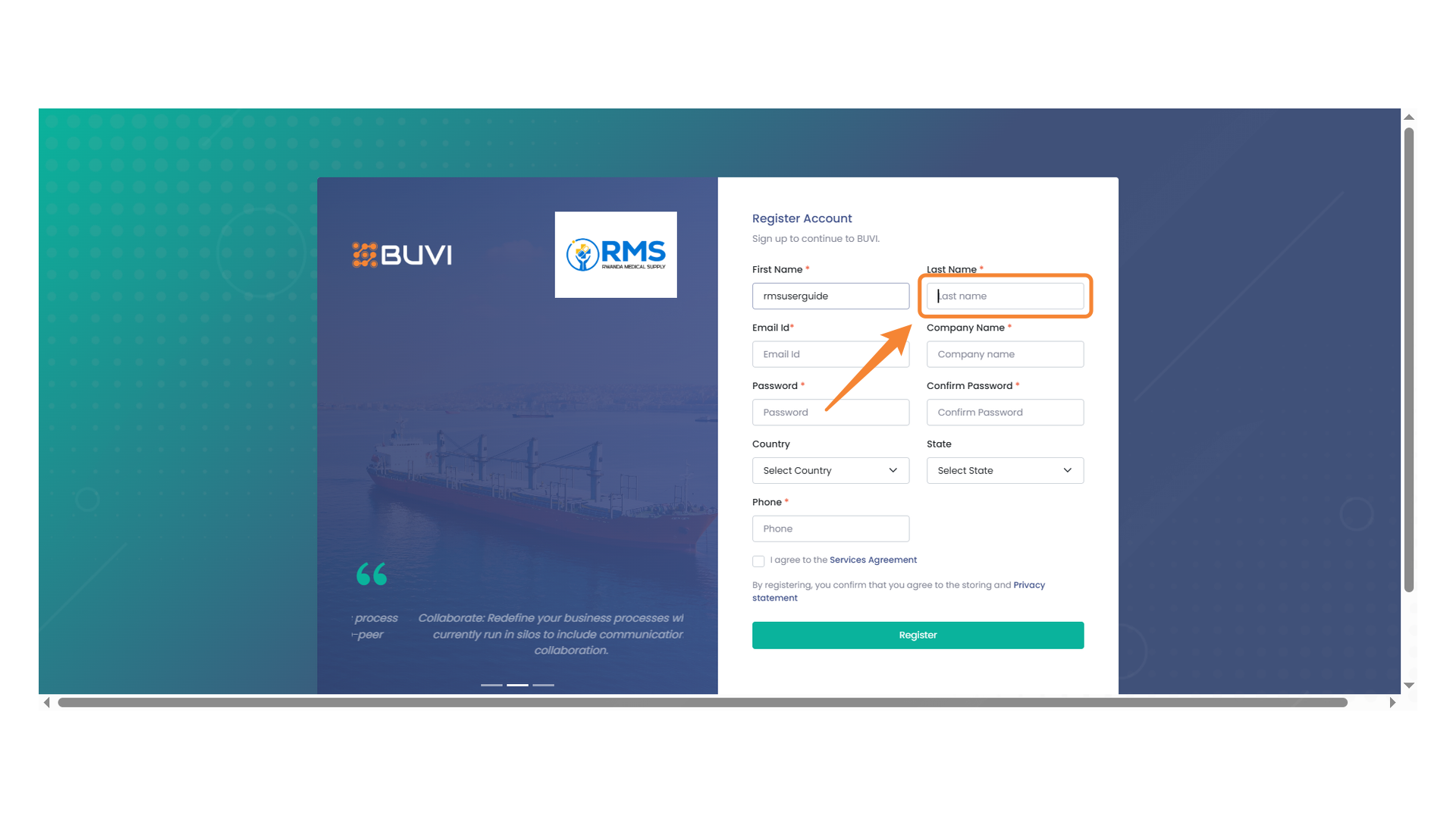
2. Last Name Input Field
Enter your last name in the provided field.
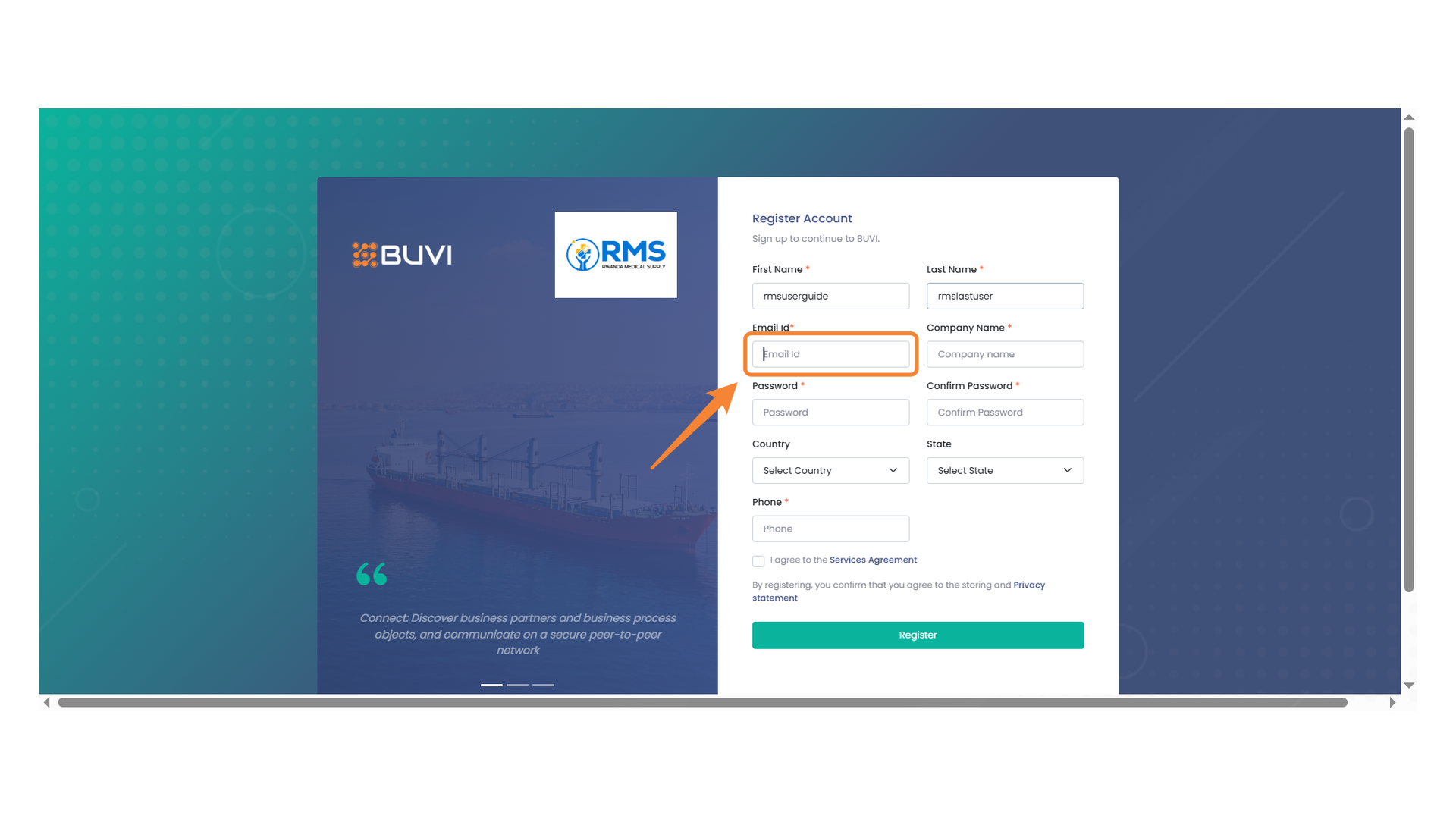
3. Email Input Field
Enter your email address in this field to proceed with the registration. NOTE: Please Enter valid Email !
4. Company Name Field
Enter your company name in the provided field.

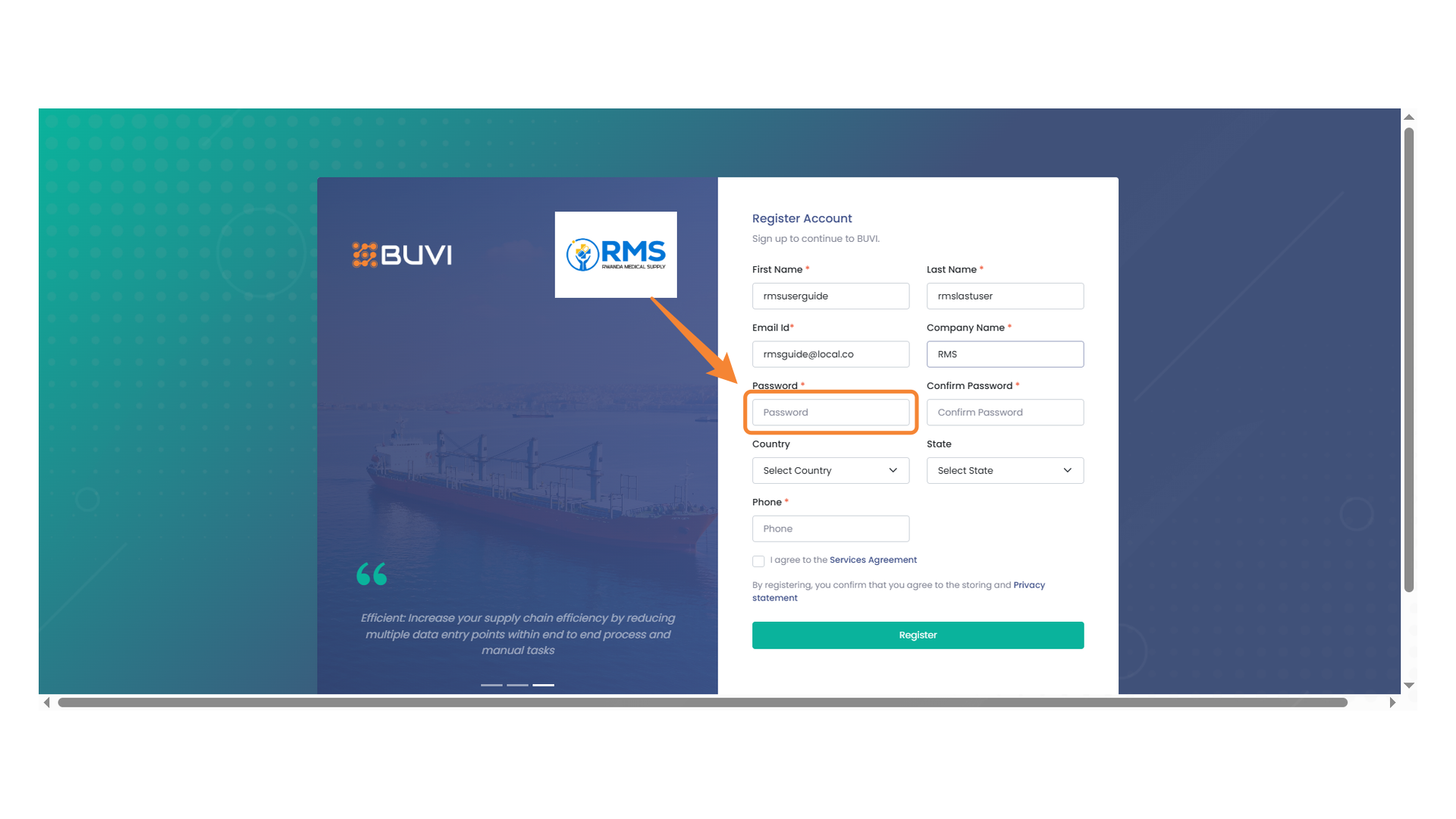
5. Password Entry Field
Enter a secure password for your account.
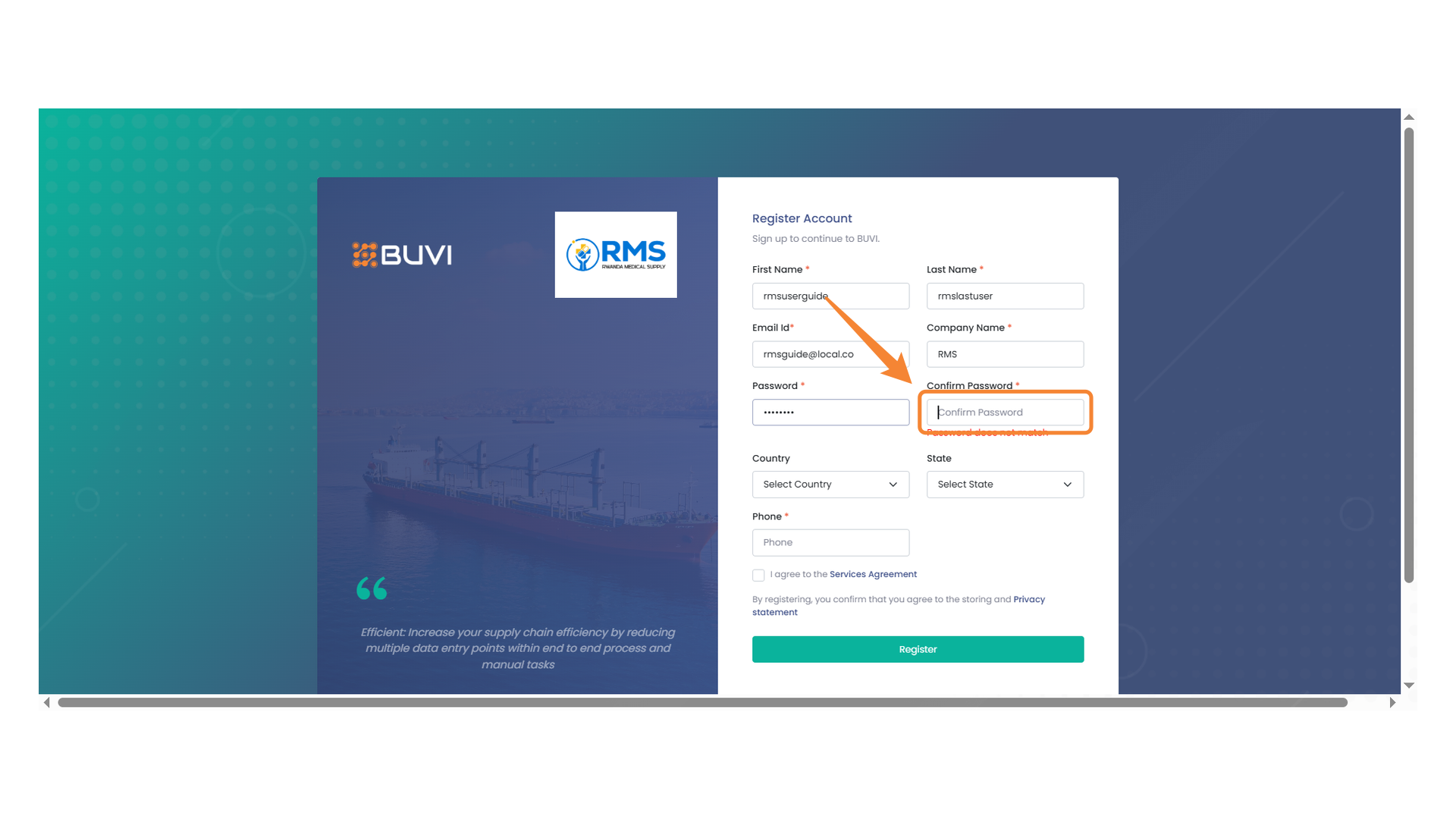
6. Confirm Password Field
Ensure that your password is correctly re-entered to confirm it. NOTE: Password does not match
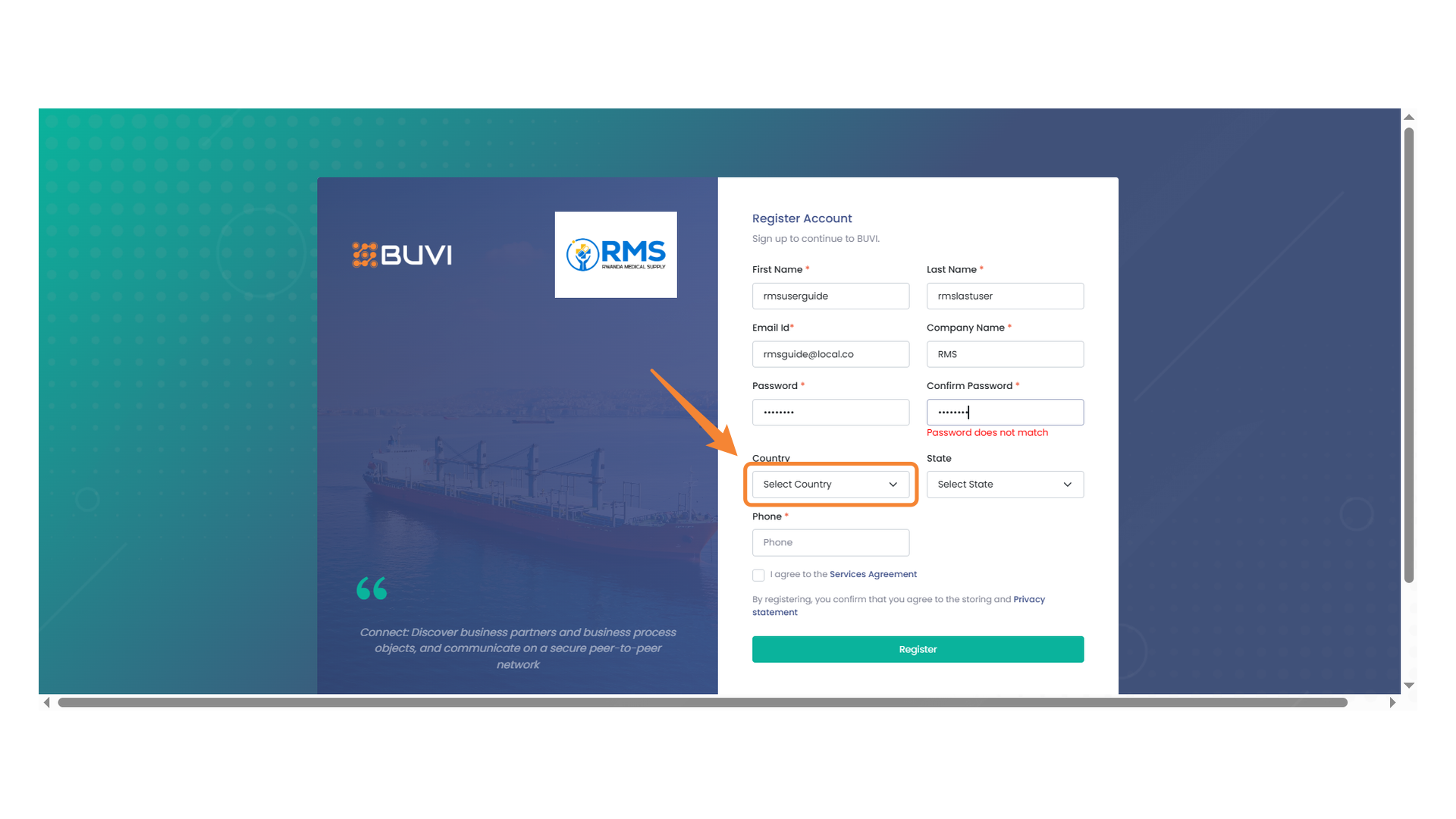
7. Country Selection Field
Choose your country from the dropdown list.
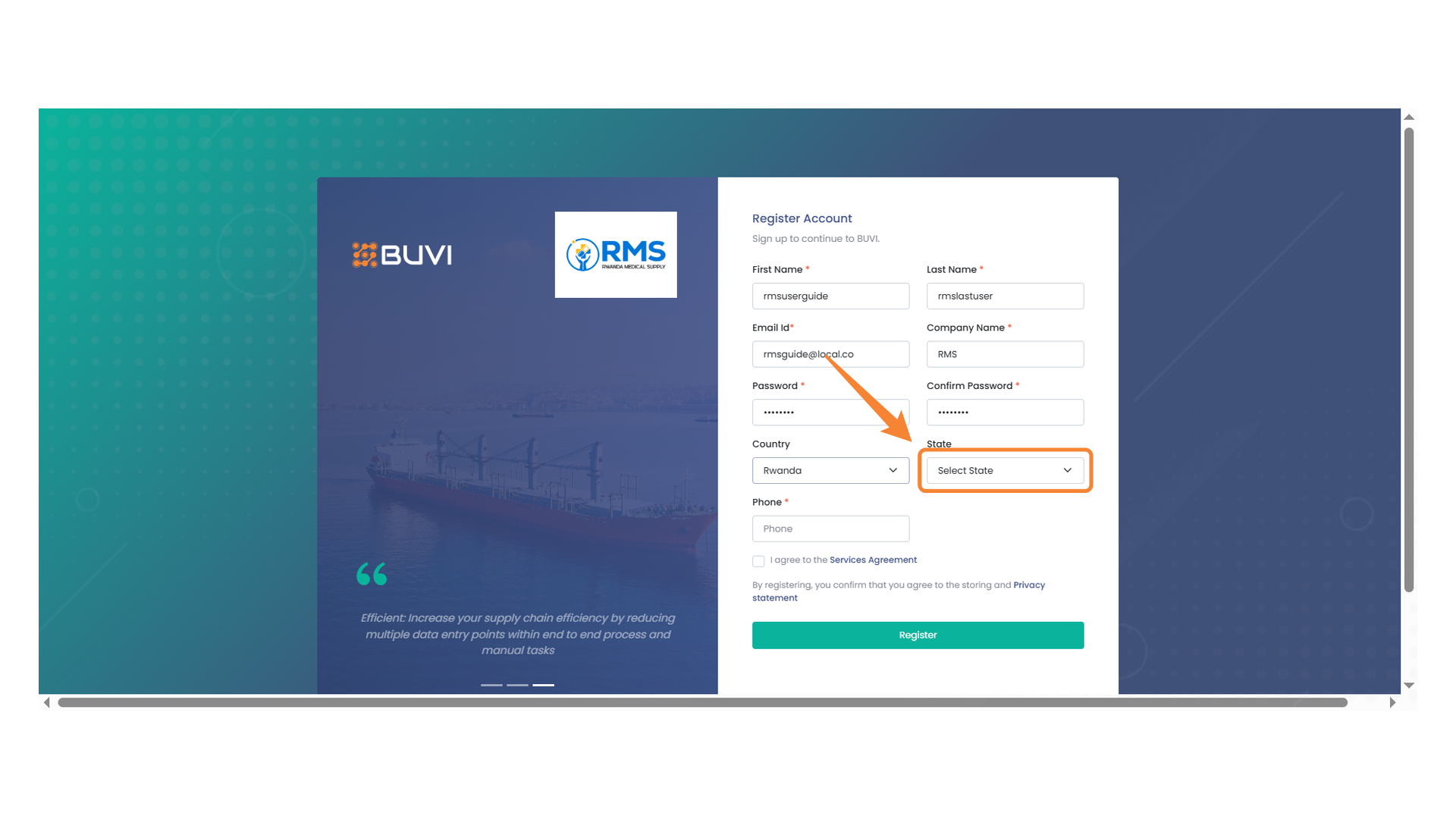
8. State Selection Dropdown
Choose your state from the dropdown menu to proceed with the registration.
9. Phone Number Input Field
Enter your phone number in this field to complete the registration form.

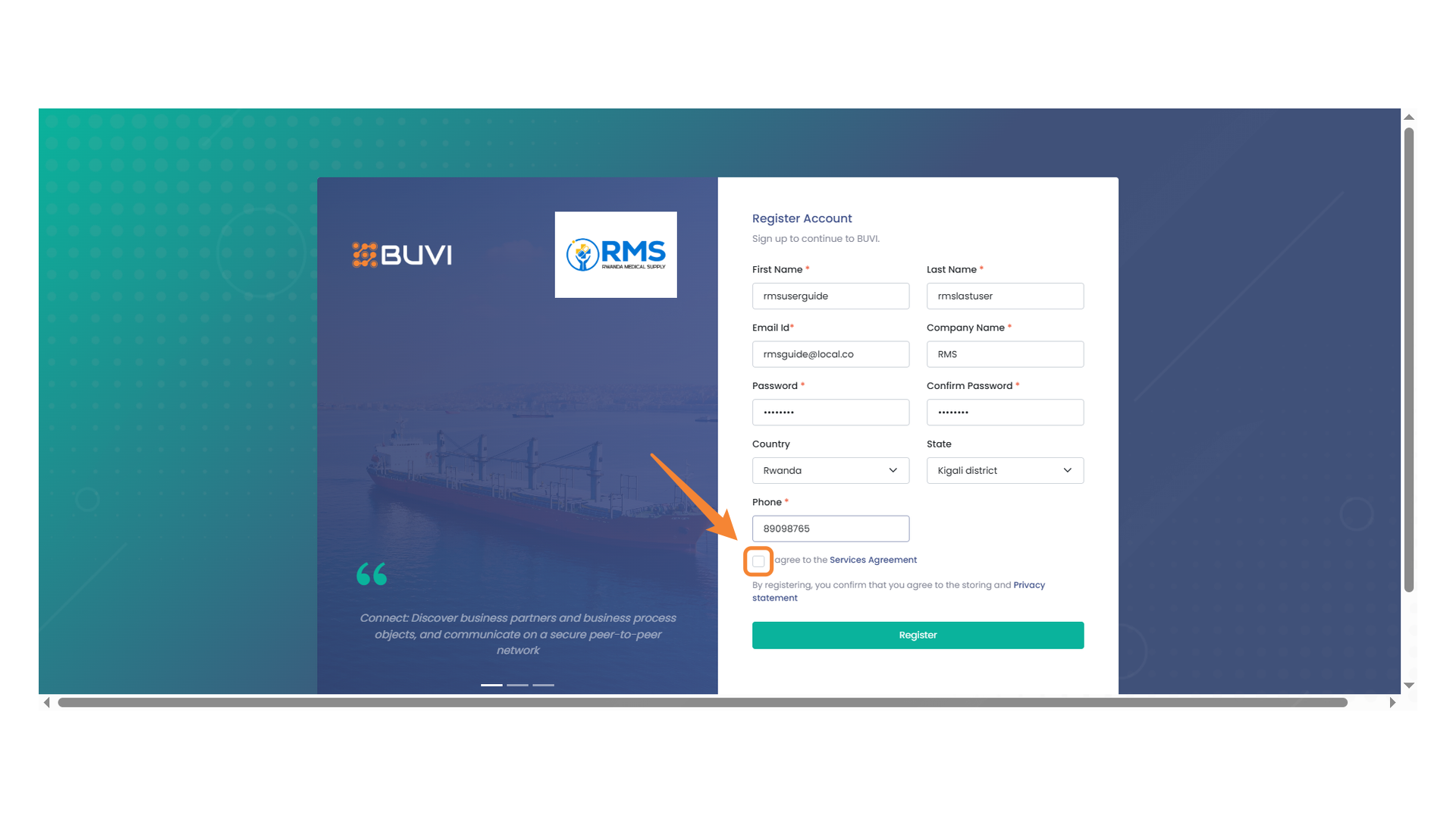
10. Agreement Checkbox
Check the box to agree to the Services Agreement before registering.
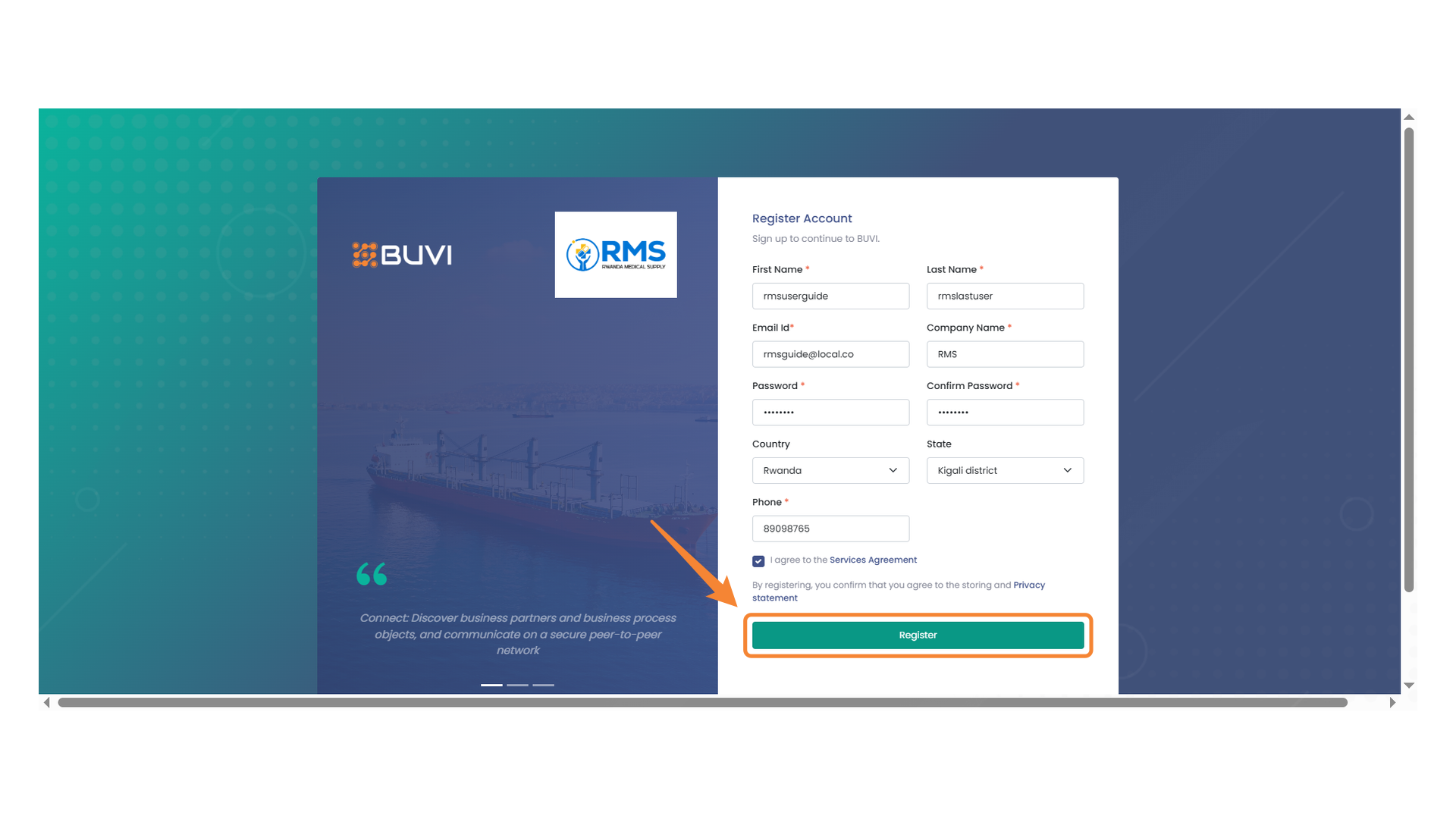
11. Register Button
Click this button to complete your registration process.
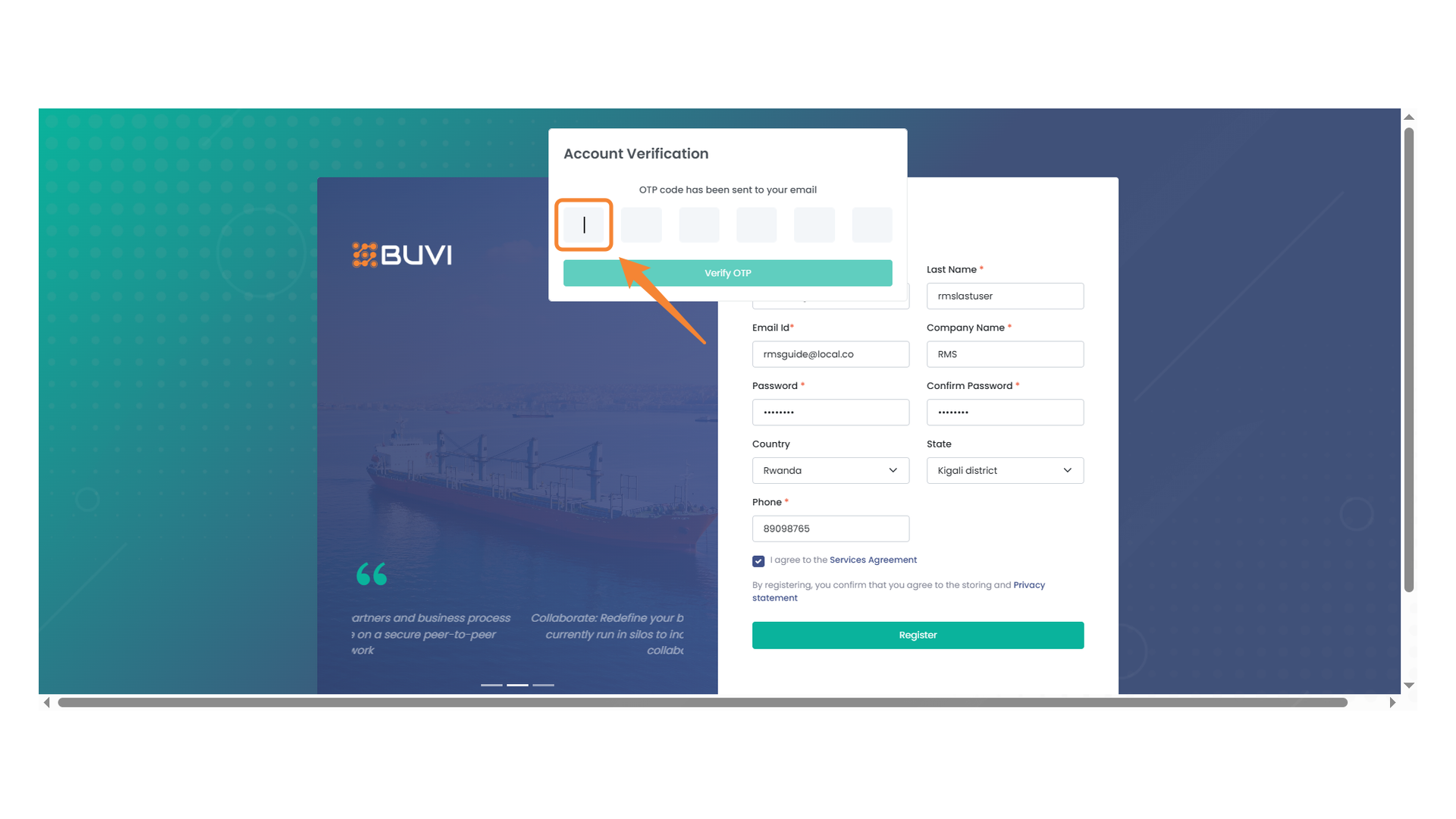
12. OTP Input Field
Enter the OTP code sent to your email into this field. NOTE: Enter Valid OTP
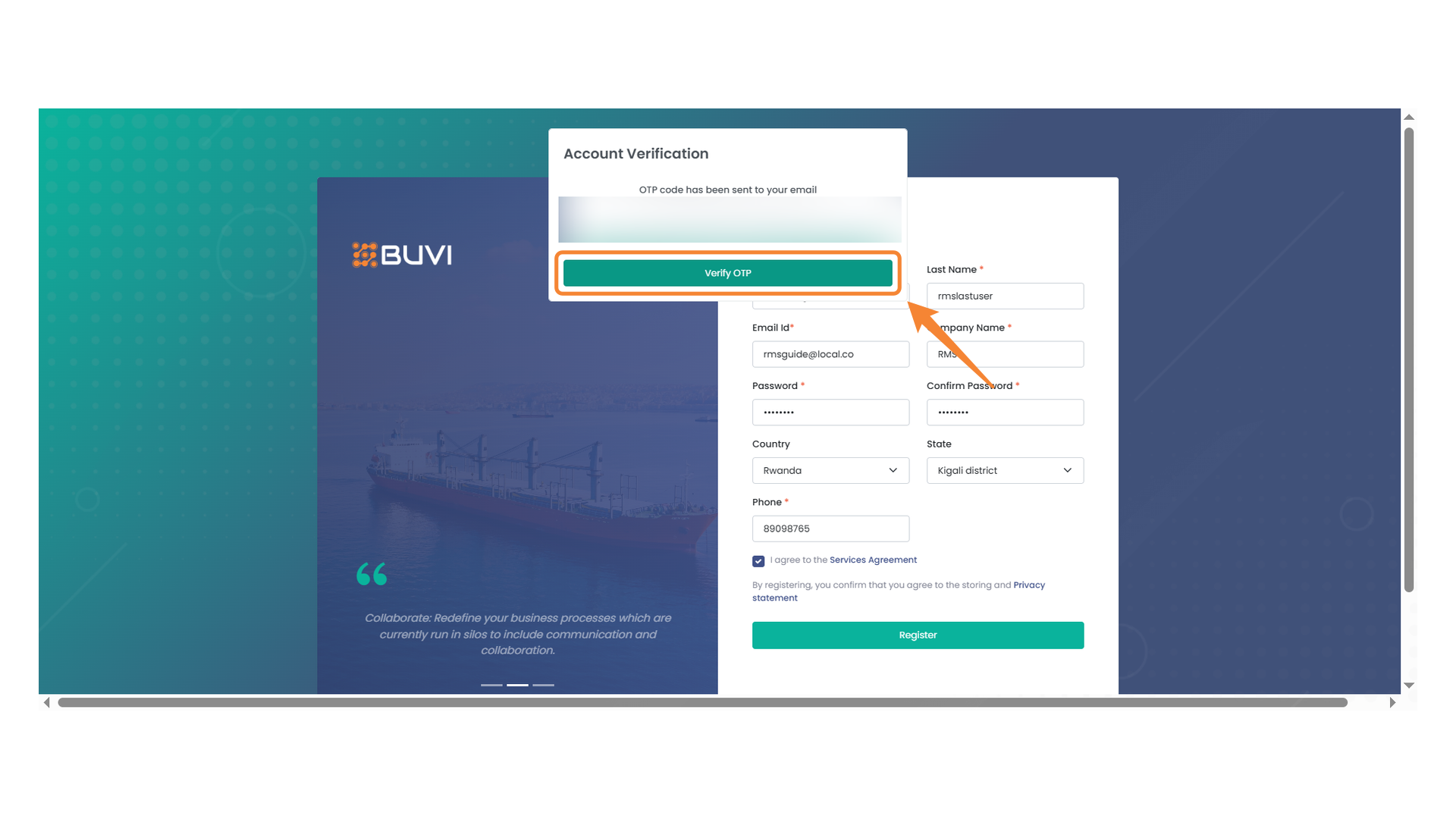
13. OTP Verification Button
Click the button to verify your OTP code.
14. Street Address Entry Field
Enter the street address for the business location.
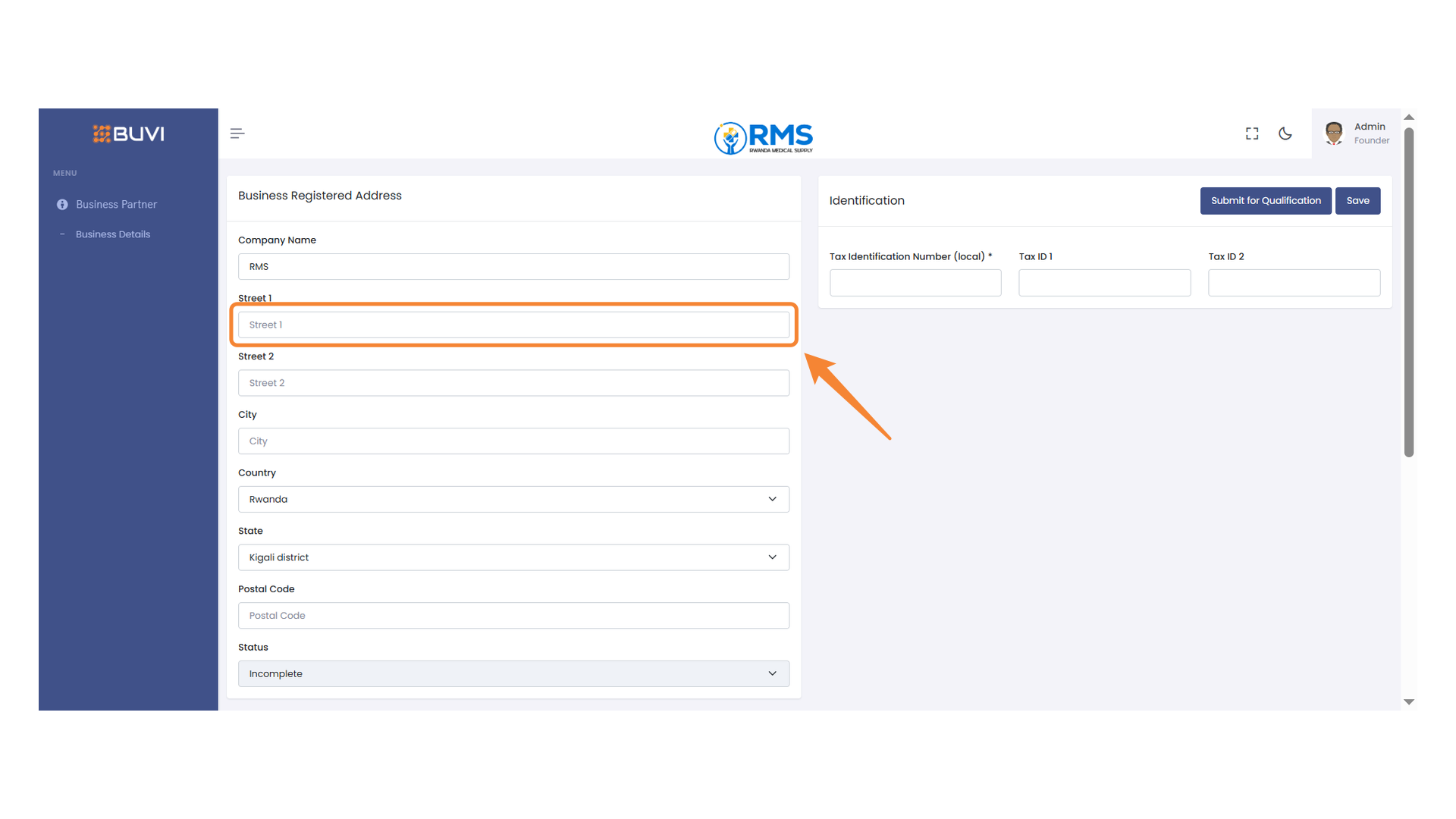
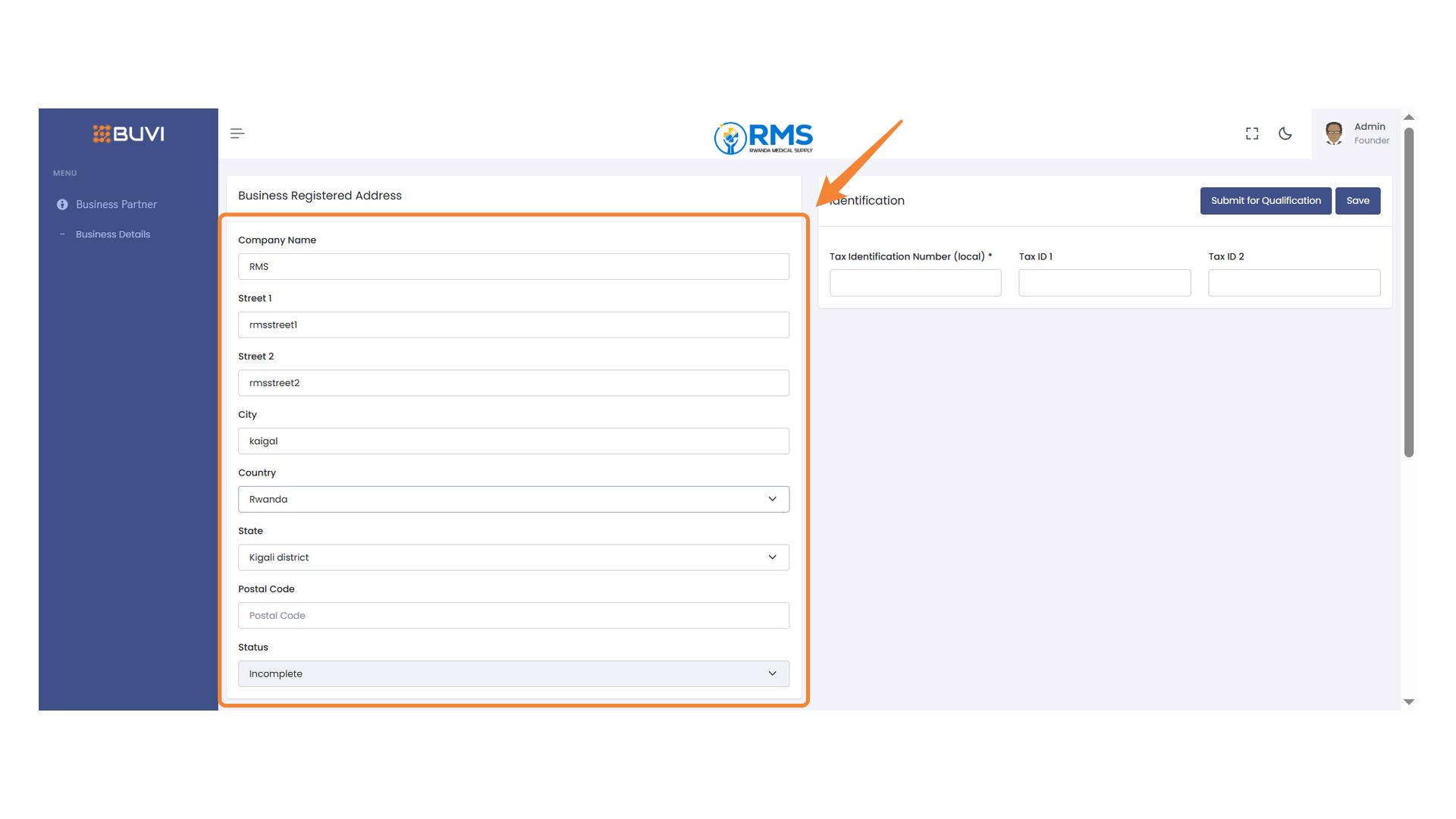
15. Business Registered Address Form
Complete the fields to add a business's registered address details.
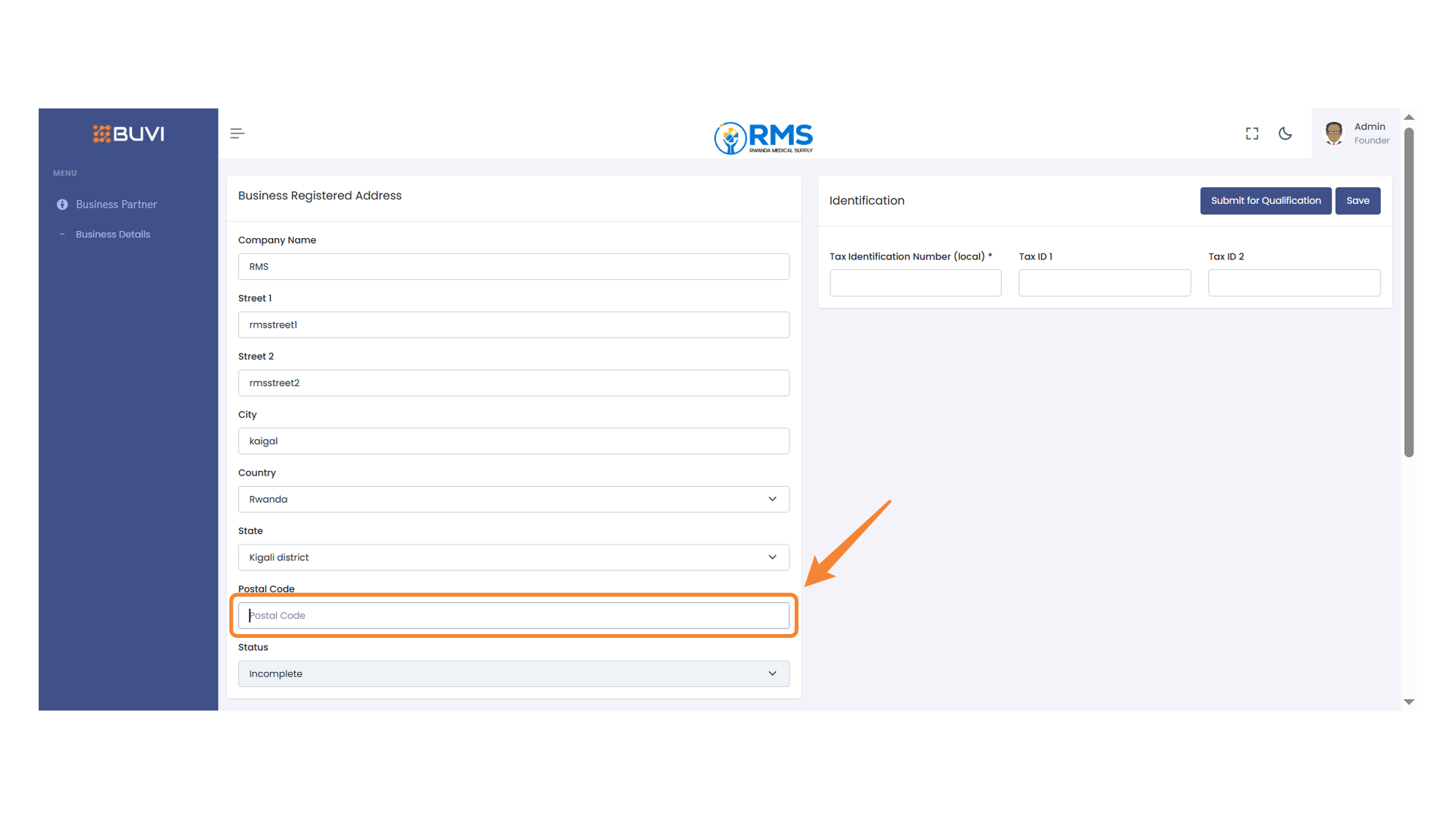
16. Postal Code Input Field
Enter the postal code of the business location.
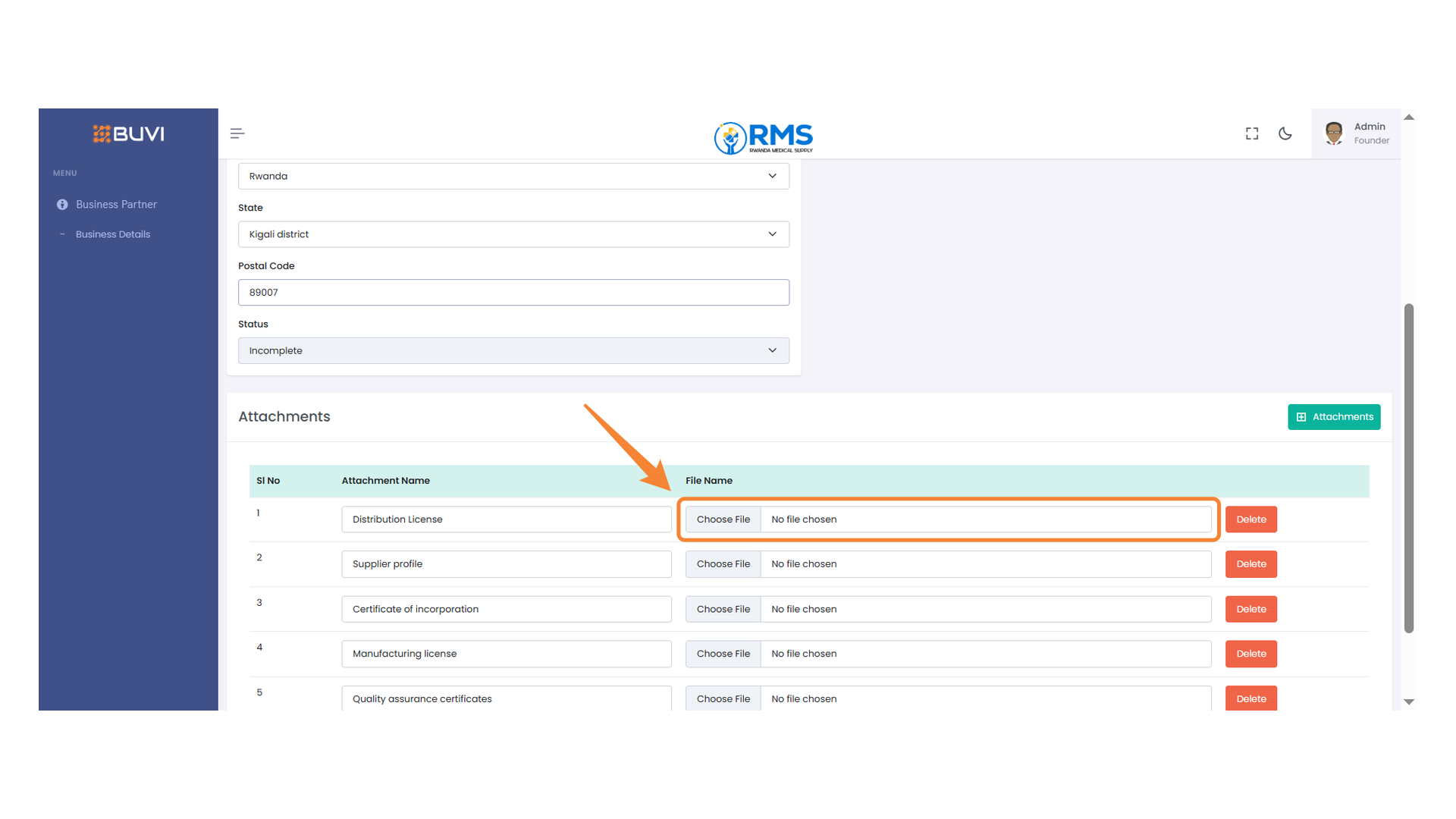
17. File Upload Section
Select a file to upload by clicking the 'Choose File' button.
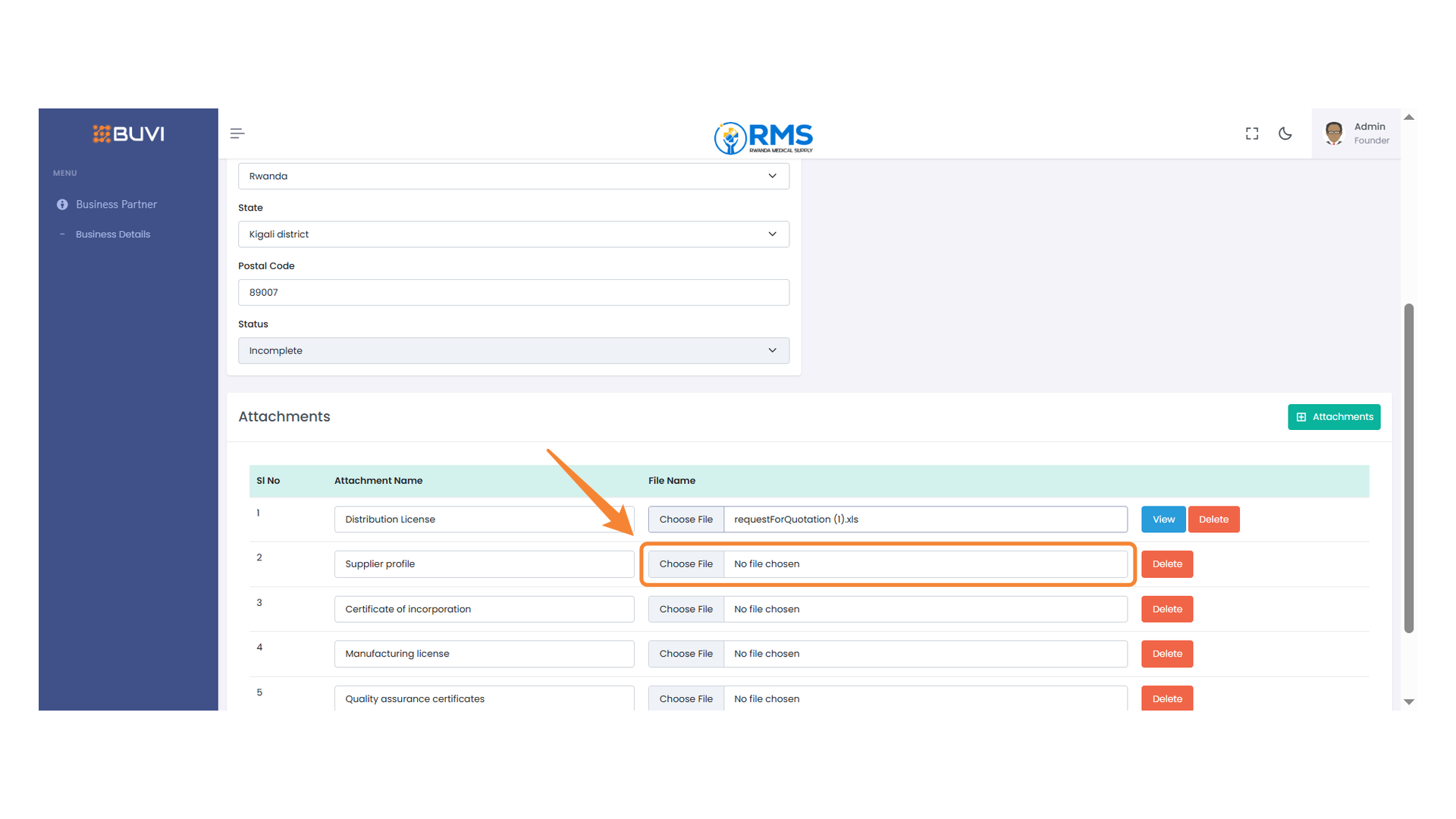
18. Upload Supplier Profile
Click 'Choose File' to upload the supplier profile document.
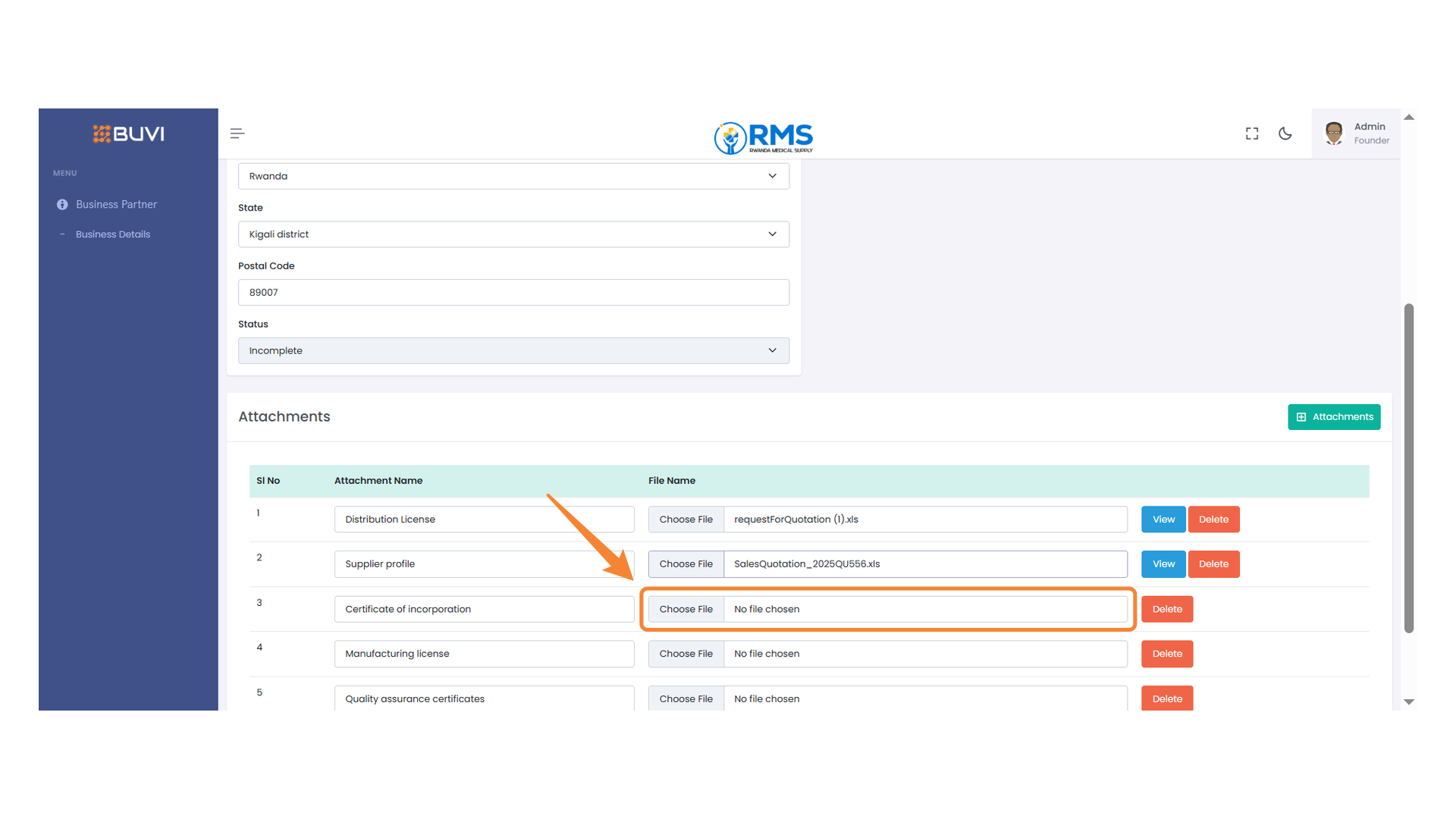
19. File Upload Placeholder
Select a file to upload for the 'Certificate of Incorporation' attachment.
20. Manufacturing License Upload
Select a file for the manufacturing license by clicking 'Choose File' and ensure a document is attached.

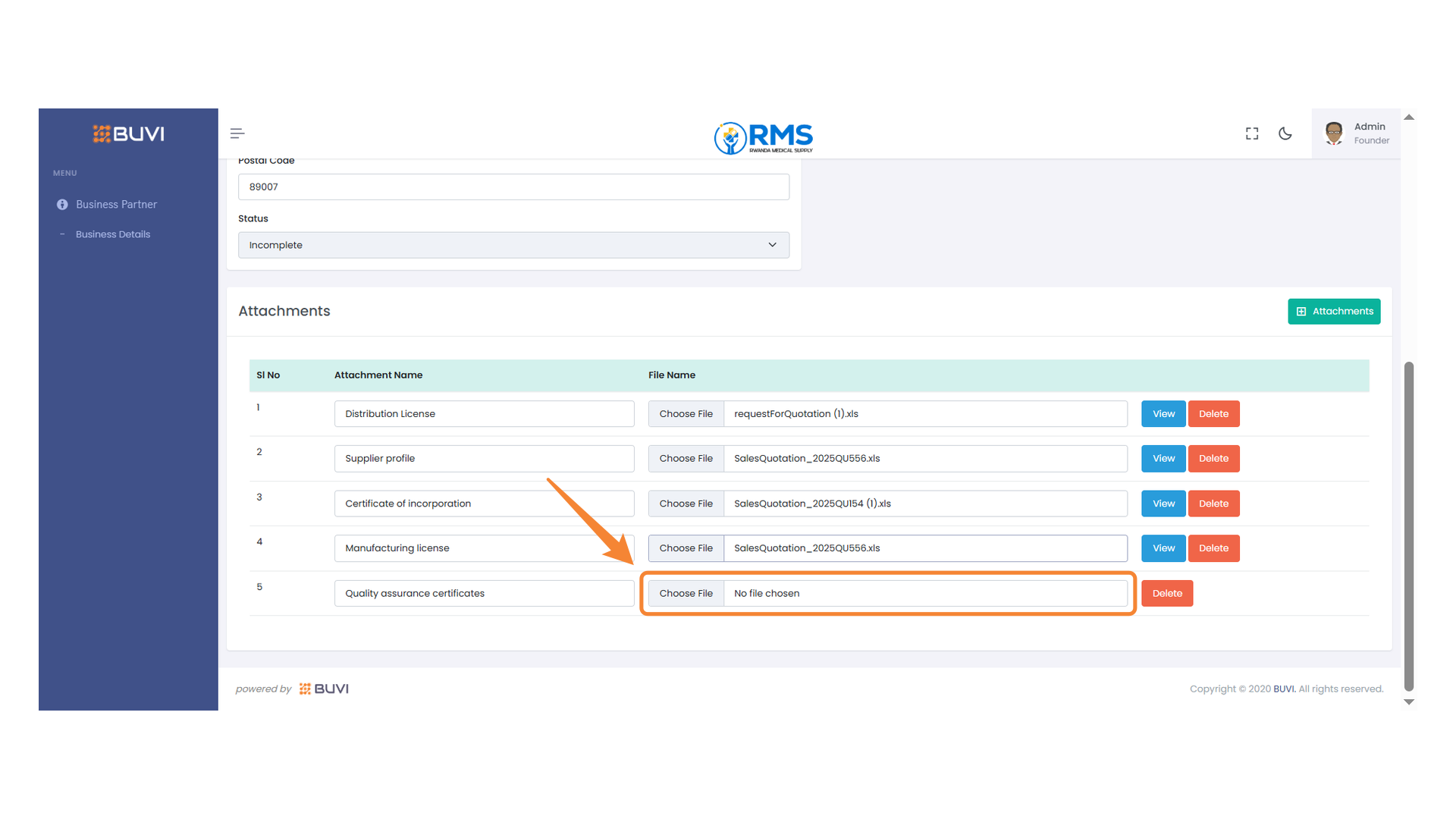
21. File Upload Option for Quality Assurance Certificates
Select a file to upload for the Quality Assurance Certificates section.
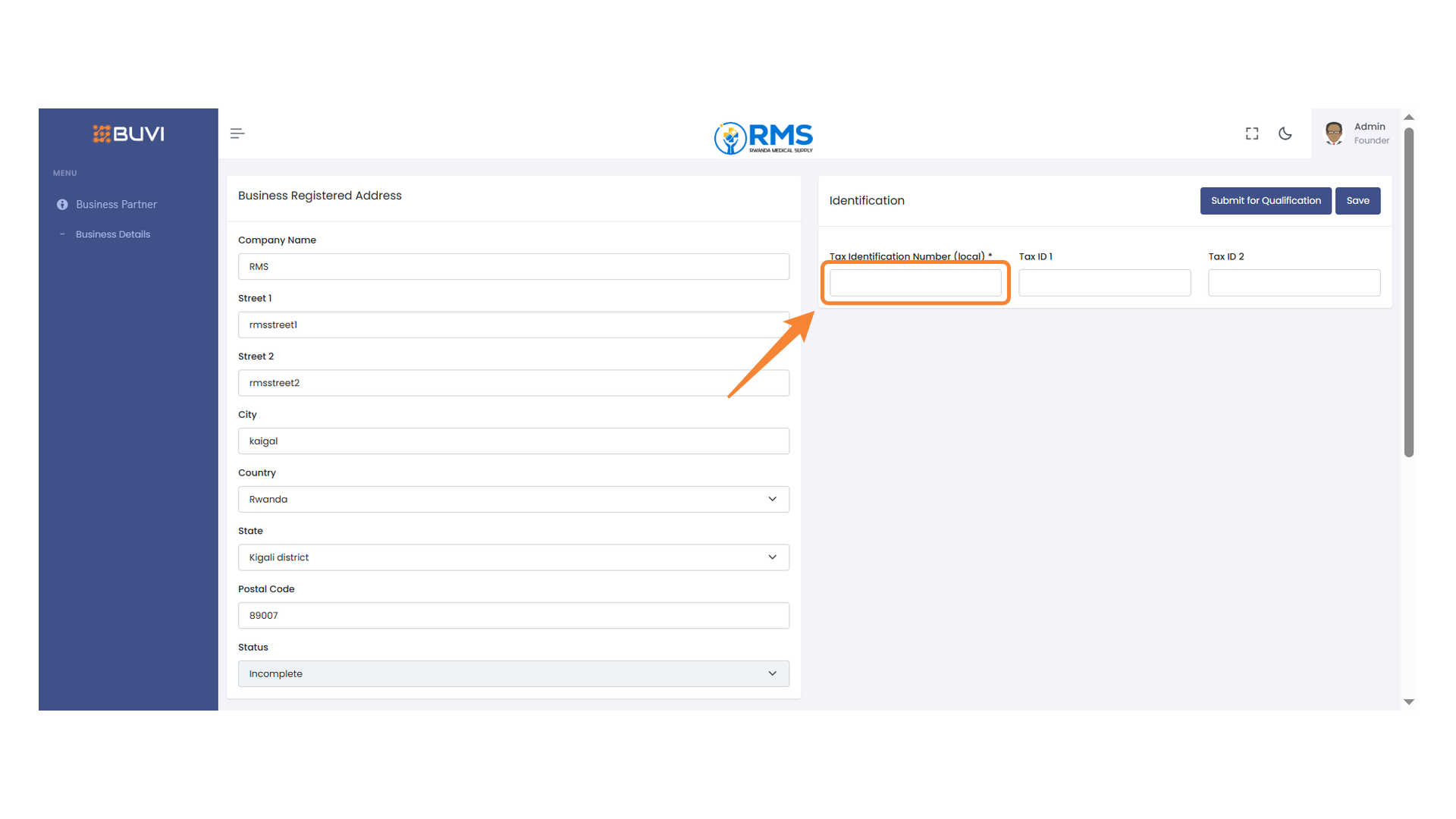
22. Tax Identification Number Field
Enter the local tax identification number in the designated field.
23. Tax ID 2 Input Field
Enter the second tax identification number in the provided field.
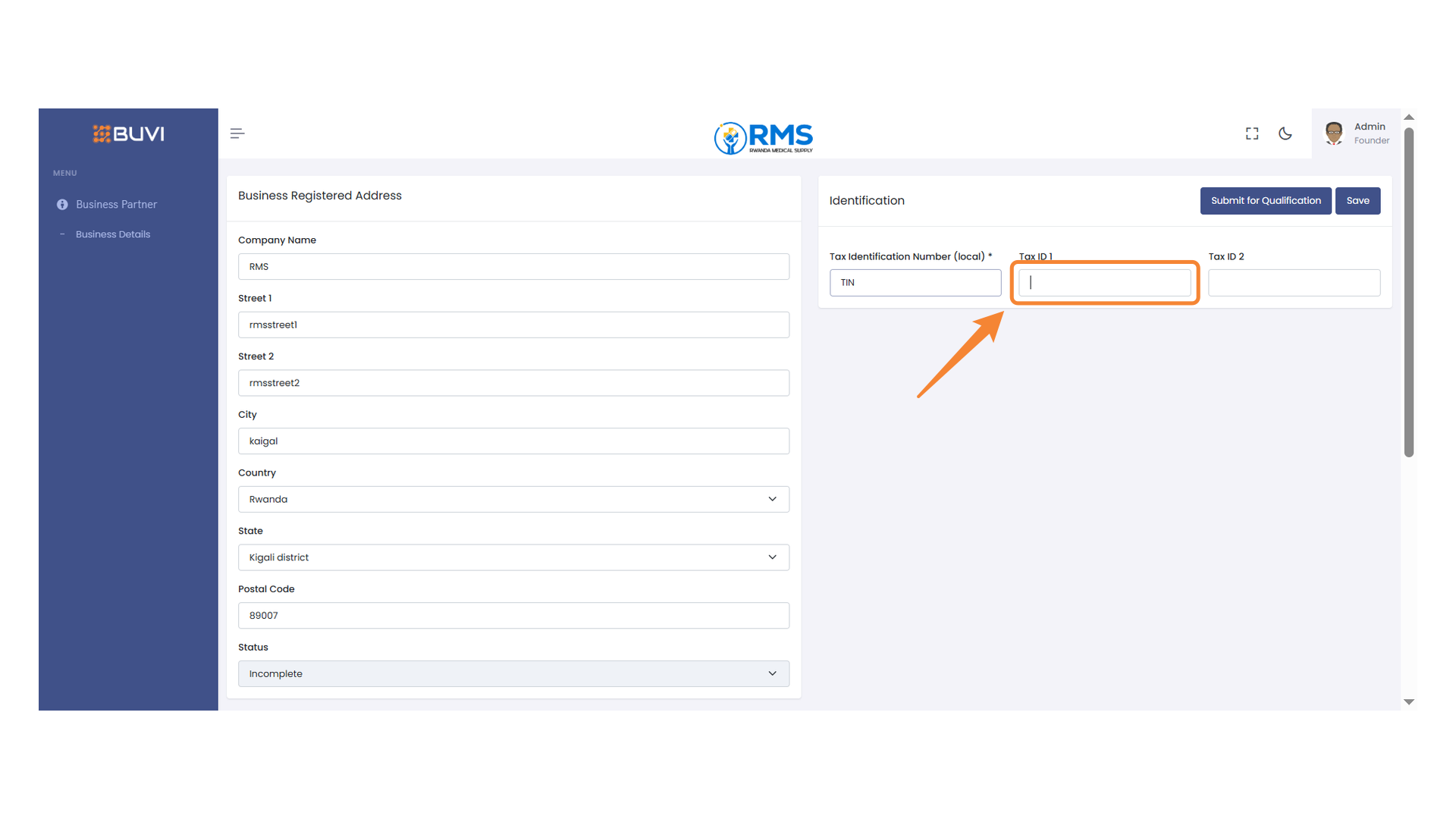
24. Tax ID Input Field
Enter the second tax identification number in this field.
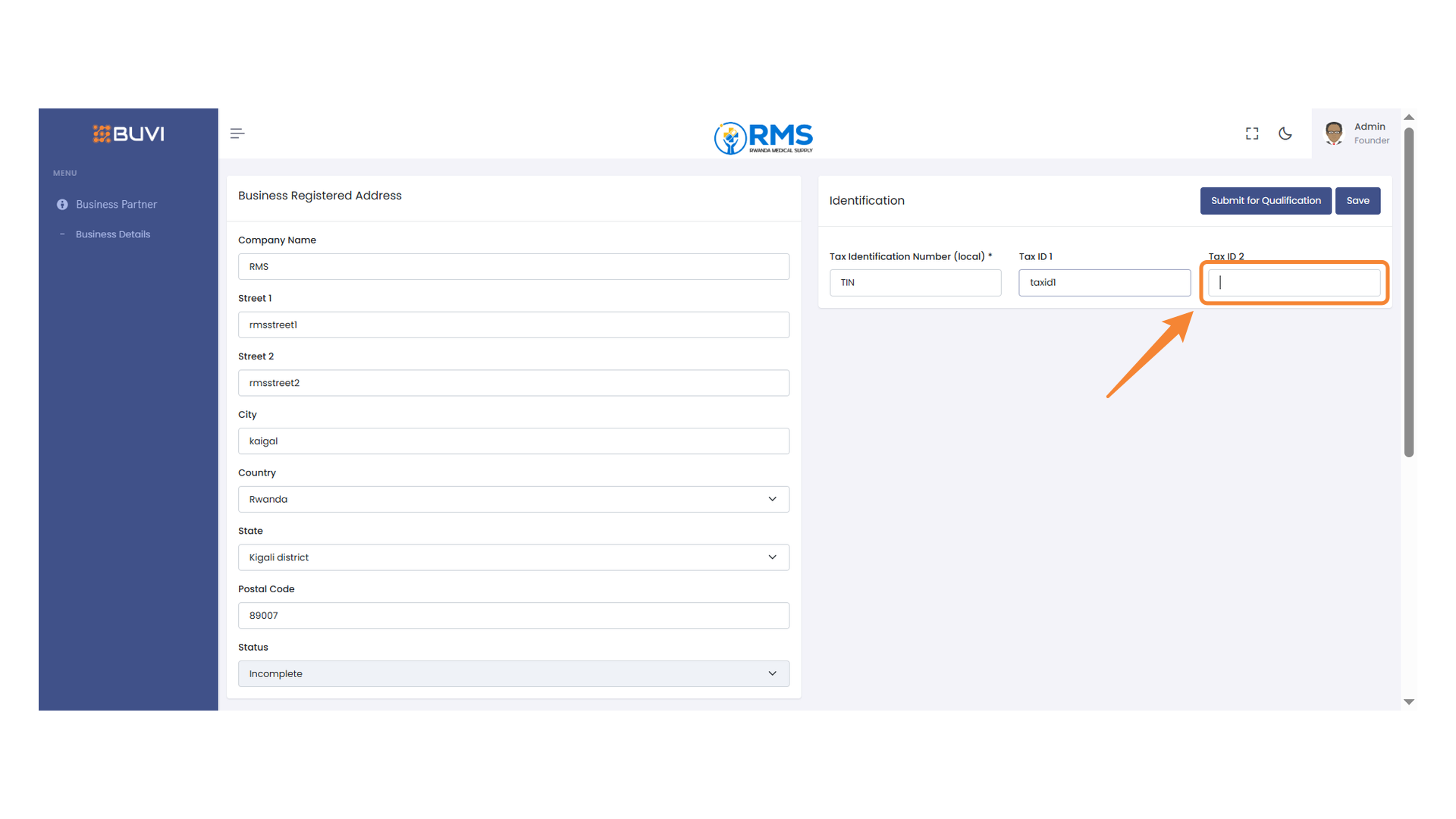
25. Submit for Qualification Button
Click to submit the current form for qualification review.

26. User Profile Information
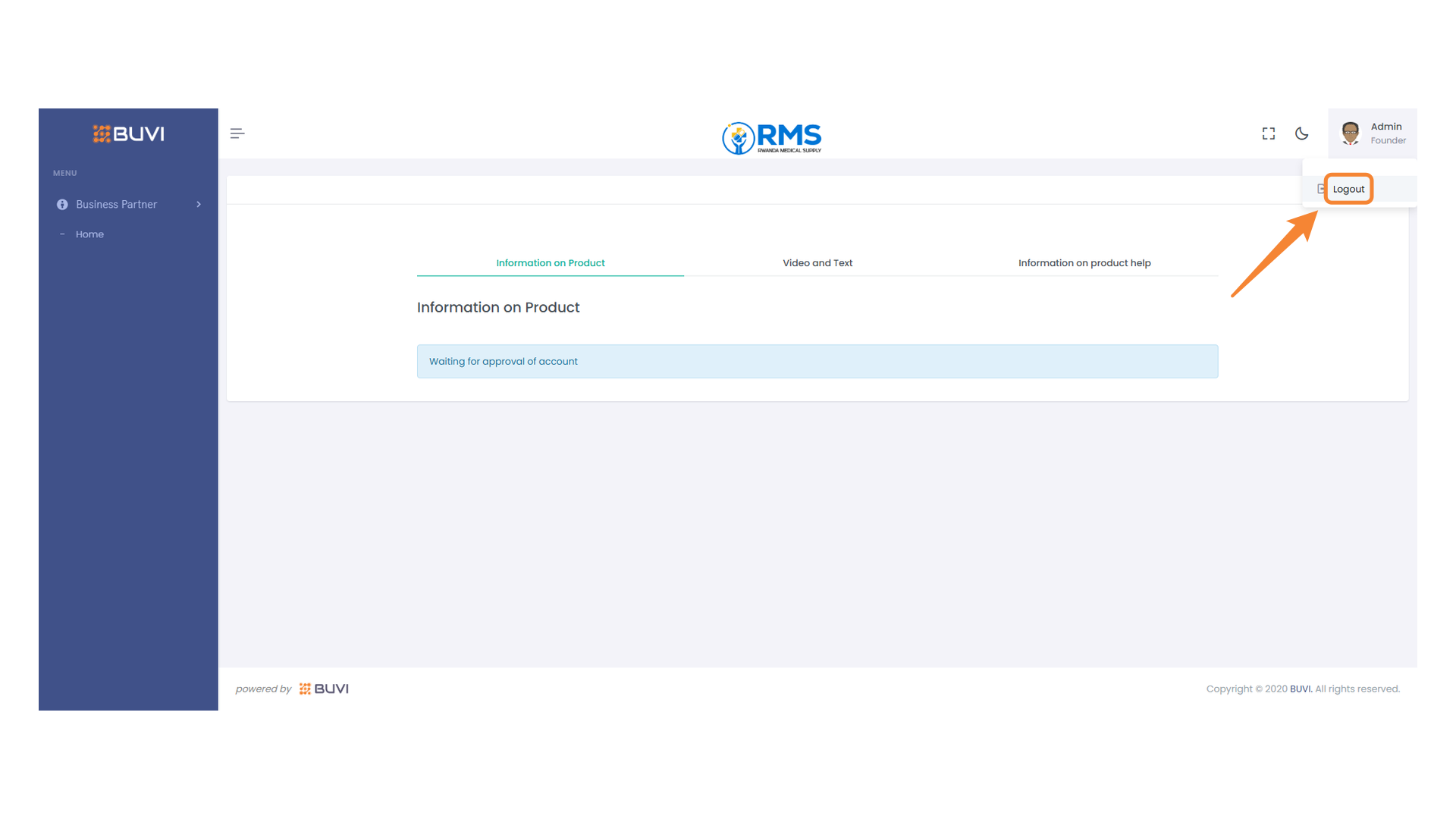
Please visit the User Profile to log out of the application.
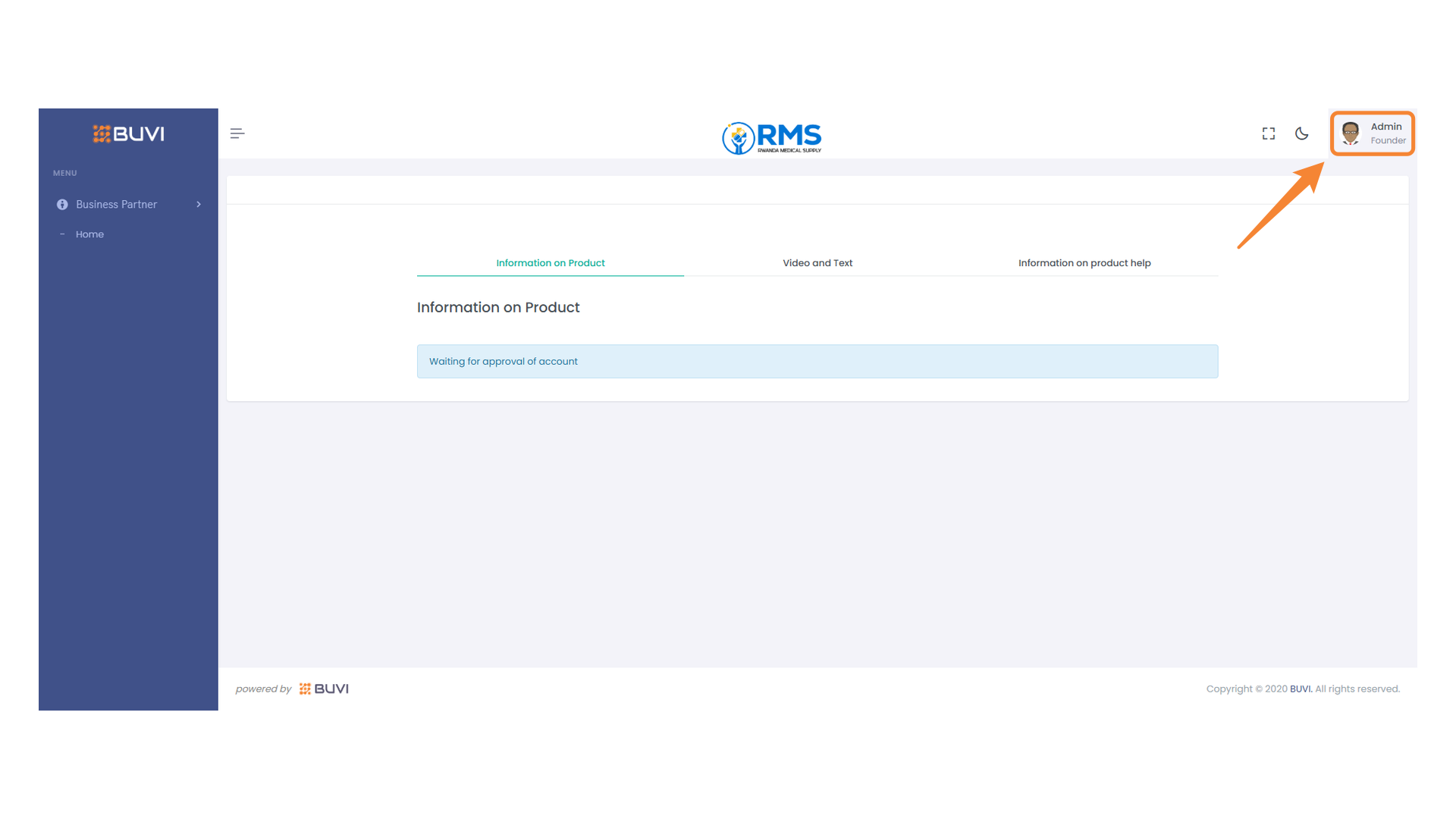
27. Logout Button
Click here to log out of your account.